Budget Tracker Documentation
How to Group Budgets Together
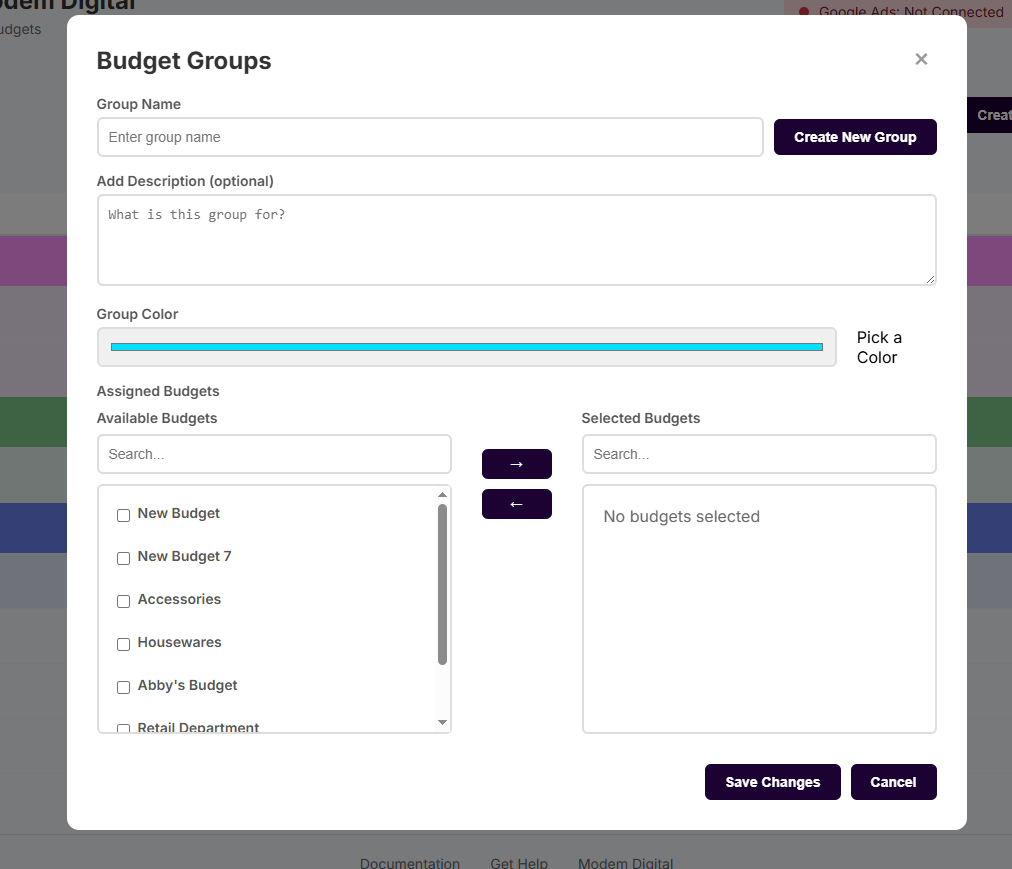
Sometimes users may want to group multiple budgets together to better monitor or organize their budgets. This can easily be done by clicking the Create Budget Group button on the top right side of the main dashboard. This opens the Budget Group Settings window, where users can enter or edit the group name, add a brief description, pick a color for the group, and select which budgets should or should not belong in the Budget Group.
In a similar fashion to ad campaigns, budgets can only belong to one group at a time. If a budget is added to a group, it will be removed from any group it previously belonged to. Any changes you make in the Budget Group Settings will not take effect until you click on the save button.